Building a Next.js Blog with Headless Bridge (Step-by-Step Tutorial)
What You’ll Build
By the end of this tutorial, you’ll have a production-ready Next.js blog that:
- ✅ Fetches content from WordPress via Headless Bridge API
- ✅ Renders blog posts with full SEO metadata
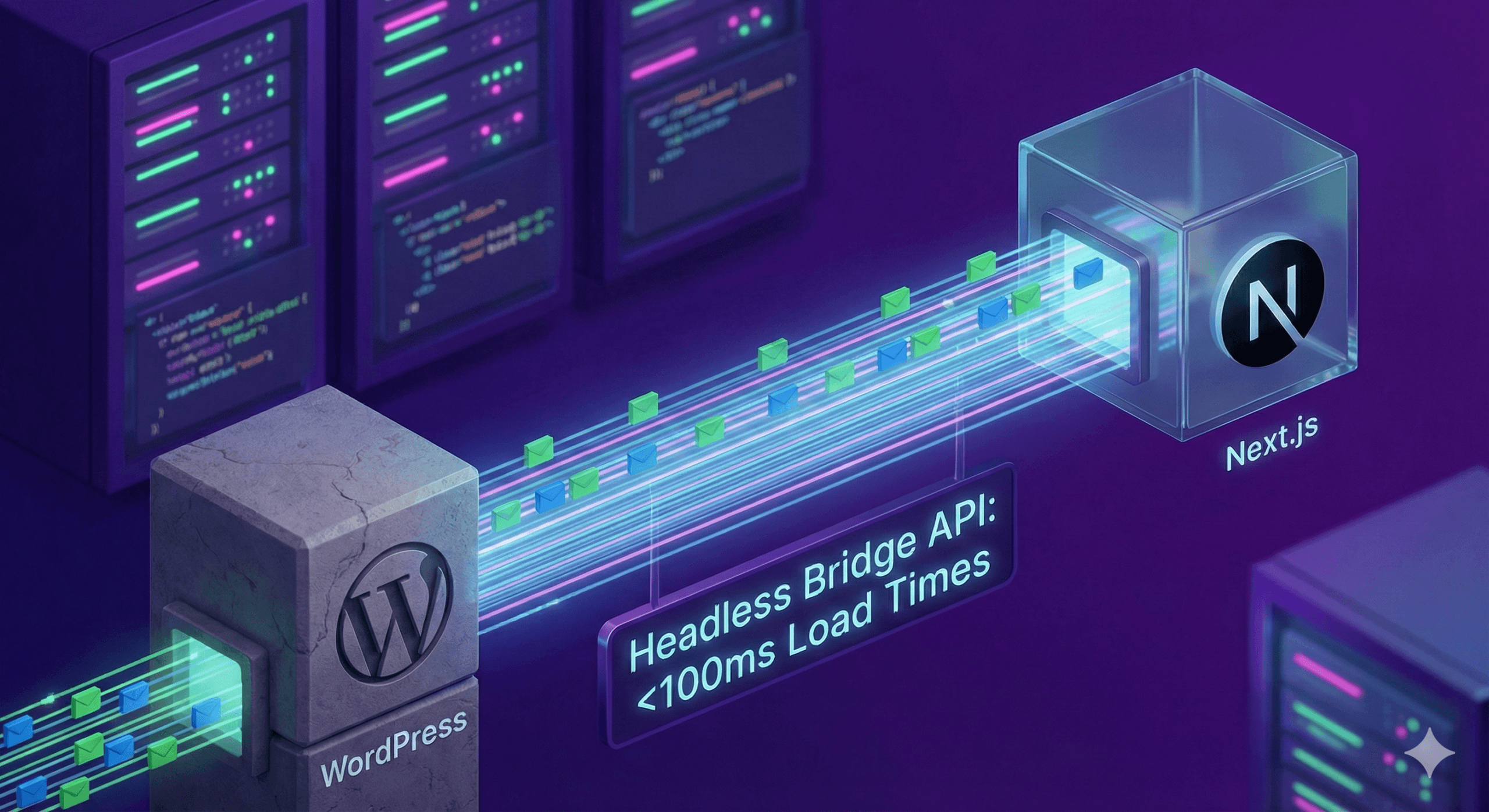
- ✅ Achieves <100ms page load times
- ✅ Supports incremental static regeneration (ISR)
- ✅ Includes automatic sitemap generation
- ✅ Deploys to Vercel in minutes
GitLab Repo: https://gitlab.com/Artemouse/nextjs-starter
Prerequisites
Before starting, make sure you have:
- Node.js 18+ installed
- A WordPress site (local or hosted)
- Headless Bridge plugin installed and activated
- Basic familiarity with Next.js and React
Estimated time: 30-45 minutes
Part 1: WordPress Setup
Step 1: Install Headless Bridge
If you haven’t already, install Headless Bridge on your WordPress site:
- Option A: WordPress.org (Recommended)
- Go to Plugins → Add New
- Search for “Headless Bridge”
- Click Install Now → Activate
- Option B: Manual Installation
- Download from wordpress.org/plugins/headless-bridge
- Upload to
/wp-content/plugins/ - Activate via WordPress admin
Step 2: Create Sample Content
Create a few blog posts in WordPress so you have content to display:
- Go to Posts → Add New
- Write a post with:
- Title
- Content (at least 3 paragraphs)
- Featured image
- Categories and tags
- Publish 3-5 posts
Step 3: Configure the API
- Navigate to Headless Bridge → Settings in WordPress admin
- Note your API endpoint:
https://yoursite.com/wp-json/bridge/v1 - (Optional) Enable API key authentication for private sites
- Click Recompile All Content to pre-compile your posts
Test the API:
curl https://yoursite.com/wp-json/bridge/v1/pages?type=postYou should see JSON with your blog posts.
Part 2: Next.js Setup
Step 4: Create Next.js App
Open your terminal and create a new Next.js project:
npx create-next-app@latest nextjs-headless-blogWhen prompted, choose:
- ✅ TypeScript: Yes
- ✅ ESLint: Yes
- ✅ Tailwind CSS: Yes
- ✅
src/directory: No - ✅ App Router: Yes
- ✅ Import alias: Yes (
@/*)
cd nextjs-headless-blogStep 5: Install Dependencies
npm install date-fnsWe’ll use date-fns for formatting publish dates.
Step 6: Environment Variables
Create .env.local in your project root:
# .env.local
NEXT_PUBLIC_WP_API_URL=https://yoursite.com/wp-json/bridge/v1
WP_API_KEY=your-api-key-here  # Only if using auth
Replace yoursite.com with your WordPress domain.
Part 3: Build the Blog
Step 7: Create API Client
Create lib/wordpress.ts:
// lib/wordpress.ts

export interface Post {
  uuid: string;
  slug: string;
  title: string;
  excerpt: string;
  content: string;
  publishedAt: string;
  modifiedAt: string;
  author?: {
    name: string;
    avatar: string;
    bio: string;
  };
  featuredImage?: {
    url: string;
    alt: string;
    width: number;
    height: number;
  };
  categories?: Array<{
    name: string;
    slug: string;
  }>;
  tags?: Array<{
    name: string;
    slug: string;
  }>;
  seo?: {
    title: string;
    description: string;
    canonical: string;
    ogImage?: string;
  };
}

export interface PostListItem {
  uuid: string;
  slug: string;
  title: string;
  excerpt: string;
  publishedAt: string;
  featuredImage?: {
    url: string;
    alt: string;
  };
}

const API_URL = process.env.NEXT_PUBLIC_WP_API_URL!;
const API_KEY = process.env.WP_API_KEY;

async function fetchAPI<T>(endpoint: string): Promise<T> {
  const headers: HeadersInit = {
    'Content-Type': 'application/json',
  };

  if (API_KEY) {
    headers['X-Headless-Bridge-Key'] = API_KEY;
  }

  const response = await fetch(`${API_URL}${endpoint}`, {
    headers,
    next: { revalidate: 60 }, // ISR: revalidate every 60 seconds
  });

  if (!response.ok) {
    throw new Error(`API Error: ${response.status}`);
  }

  return response.json();
}

export async function getAllPosts(): Promise<PostListItem[]> {
  const data = await fetchAPI<{ items: PostListItem[] }>('/pages?type=post&limit=50');
  return data.items;
}

export async function getPostBySlug(slug: string): Promise<Post> {
  return fetchAPI<Post>(`/page?slug=${slug}`);
}

export async function getAllPostSlugs(): Promise<string[]> {
  const posts = await getAllPosts();
  return posts.map((post) => post.slug);
}
Step 8: Create Blog Listing Page
Create app/blog/page.tsx:
// app/blog/page.tsx

import Link from 'next/link';
import Image from 'next/image';
import { getAllPosts } from '@/lib/wordpress';
import { format } from 'date-fns';
import type { Metadata } from 'next';

export const metadata: Metadata = {
  title: 'Blog | My Next.js Site',
  description: 'Read our latest articles about web development, Next.js, and WordPress.',
};

export const revalidate = 60; // Revalidate every 60 seconds

export default async function BlogPage() {
  const posts = await getAllPosts();

  return (
    <div className="max-w-7xl mx-auto px-4 py-12">
      <h1 className="text-4xl font-bold mb-8">Blog</h1>

      <div className="grid md:grid-cols-2 lg:grid-cols-3 gap-8">
        {posts.map((post) => (
          <Link
            key={post.uuid}
            href={`/blog/${post.slug}`}
            className="group"
          >
            <article className="bg-white rounded-lg overflow-hidden shadow-md hover:shadow-xl transition-shadow">
              {/* Featured Image */}
              {post.featuredImage && (
                <div className="relative h-48 bg-gray-200">
                  <Image
                    src={post.featuredImage.url}
                    alt={post.featuredImage.alt || post.title}
                    fill
                    className="object-cover group-hover:scale-105 transition-transform duration-300"
                  />
                </div>
              )}

              {/* Content */}
              <div className="p-6">
                <h2 className="text-xl font-bold mb-2 group-hover:text-blue-600 transition-colors">
                  {post.title}
                </h2>

                <div
                  className="text-gray-600 mb-4 line-clamp-3"
                  dangerouslySetInnerHTML={{ __html: post.excerpt }}
                />

                <time
                  dateTime={post.publishedAt}
                  className="text-sm text-gray-500"
                >
                  {format(new Date(post.publishedAt), 'MMMM d, yyyy')}
                </time>
              </div>
            </article>
          </Link>
        ))}
      </div>
    </div>
  );
}
Step 9: Create Single Post Page
Create app/blog/[slug]/page.tsx:
// app/blog/[slug]/page.tsx

import Image from 'next/image';
import Link from 'next/link';
import { notFound } from 'next/navigation';
import { getPostBySlug, getAllPostSlugs } from '@/lib/wordpress';
import { format } from 'date-fns';
import type { Metadata } from 'next';

interface PageProps {
  params: {
    slug: string;
  };
}

// Generate static params for all posts
export async function generateStaticParams() {
  const slugs = await getAllPostSlugs();
  return slugs.map((slug) => ({ slug }));
}

// Generate SEO metadata
export async function generateMetadata({ params }: PageProps): Promise<Metadata> {
  try {
    const post = await getPostBySlug(params.slug);

    const title = post.seo?.title || post.title;
    const description = post.seo?.description || post.excerpt;
    const ogImage = post.seo?.ogImage || post.featuredImage?.url;

    return {
      title,
      description,
      openGraph: {
        title,
        description,
        type: 'article',
        publishedTime: post.publishedAt,
        authors: post.author ? [post.author.name] : [],
        images: ogImage ? [ogImage] : [],
      },
      twitter: {
        card: 'summary_large_image',
        title,
        description,
        images: ogImage ? [ogImage] : [],
      },
    };
  } catch {
    return {
      title: 'Post Not Found',
    };
  }
}

export const revalidate = 60; // ISR revalidation

export default async function BlogPost({ params }: PageProps) {
  let post;

  try {
    post = await getPostBySlug(params.slug);
  } catch {
    notFound();
  }

  return (
    <div className="max-w-4xl mx-auto px-4 py-12">
      {/* Back Link */}
      <Link
        href="/blog"
        className="inline-flex items-center text-blue-600 hover:text-blue-700 mb-8"
      >
        ← Back to Blog
      </Link>

      {/* Featured Image */}
      {post.featuredImage && (
        <div className="relative h-96 mb-8 rounded-lg overflow-hidden">
          <Image
            src={post.featuredImage.url}
            alt={post.featuredImage.alt || post.title}
            fill
            className="object-cover"
            priority
          />
        </div>
      )}

      {/* Title */}
      <h1 className="text-5xl font-bold mb-4">{post.title}</h1>

      {/* Meta Info */}
      <div className="flex items-center gap-4 mb-8 pb-8 border-b">
        {post.author && (
          <div className="flex items-center gap-3">
            <Image
              src={post.author.avatar}
              alt={post.author.name}
              width={48}
              height={48}
              className="rounded-full"
            />
            <div>
              <div className="font-semibold">{post.author.name}</div>
              <time dateTime={post.publishedAt} className="text-sm text-gray-500">
                {format(new Date(post.publishedAt), 'MMMM d, yyyy')}
              </time>
            </div>
          </div>
        )}
      </div>

      {/* Content */}
      <div
        className="prose prose-lg max-w-none mb-8"
        dangerouslySetInnerHTML={{ __html: post.content }}
      />

      {/* Categories & Tags */}
      {(post.categories || post.tags) && (
        <div className="pt-8 border-t space-y-4">
          {post.categories && post.categories.length > 0 && (
            <div>
              <span className="font-semibold mr-2">Categories:</span>
              {post.categories.map((cat, i) => (
                <span key={cat.slug}>
                  {i > 0 && ', '}
                  {cat.name}
                </span>
              ))}
            </div>
          )}

          {post.tags && post.tags.length > 0 && (
            <div className="flex flex-wrap gap-2">
              <span className="font-semibold">Tags:</span>
              {post.tags.map((tag) => (
                <span
                  key={tag.slug}
                  className="px-3 py-1 bg-gray-100 rounded-full text-sm"
                >
                  #{tag.name}
                </span>
              ))}
            </div>
          )}
        </div>
      )}
    </div>
  );
}
Step 10: Add Prose Styles for Content
Install @tailwindcss/typography:
npm install -D @tailwindcss/typographyUpdate tailwind.config.ts:
// tailwind.config.ts
import type { Config } from 'tailwindcss';

const config: Config = {
  content: [
    './pages/**/*.{js,ts,jsx,tsx,mdx}',
    './components/**/*.{js,ts,jsx,tsx,mdx}',
    './app/**/*.{js,ts,jsx,tsx,mdx}',
  ],
  theme: {
    extend: {},
  },
  plugins: [
    require('@tailwindcss/typography'),
  ],
};

export default config;
Step 11: Create Homepage
Update app/page.tsx:
// app/page.tsx

import Link from 'next/link';
import { getAllPosts } from '@/lib/wordpress';

export default async function Home() {
  const posts = await getAllPosts();
  const recentPosts = posts.slice(0, 3); // Get 3 most recent

  return (
    <div className="max-w-7xl mx-auto px-4 py-12">
      {/* Hero */}
      <section className="text-center py-20">
        <h1 className="text-6xl font-bold mb-6">
          My Awesome Blog
        </h1>
        <p className="text-xl text-gray-600 mb-8">
          Powered by WordPress & Headless Bridge
        </p>
        <Link
          href="/blog"
          className="inline-block bg-blue-600 text-white px-8 py-3 rounded-lg font-semibold hover:bg-blue-700 transition"
        >
          Read the Blog
        </Link>
      </section>

      {/* Recent Posts */}
      <section className="py-12">
        <h2 className="text-3xl font-bold mb-8">Recent Posts</h2>
        <div className="grid md:grid-cols-3 gap-8">
          {recentPosts.map((post) => (
            <Link
              key={post.uuid}
              href={`/blog/${post.slug}`}
              className="block hover:opacity-75 transition"
            >
              <h3 className="text-xl font-bold mb-2">{post.title}</h3>
              <div
                className="text-gray-600 line-clamp-2"
                dangerouslySetInnerHTML={{ __html: post.excerpt }}
              />
            </Link>
          ))}
        </div>
      </section>
    </div>
  );
}
Part 4: SEO & Sitemap
Step 12: Generate Sitemap
Create app/sitemap.ts:
// app/sitemap.ts

import { getAllPosts } from '@/lib/wordpress';
import type { MetadataRoute } from 'next';

export default async function sitemap(): Promise<MetadataRoute.Sitemap> {
  const posts = await getAllPosts();
  const baseUrl = process.env.NEXT_PUBLIC_SITE_URL || 'https://yoursite.com';

  const postEntries = posts.map((post) => ({
    url: `${baseUrl}/blog/${post.slug}`,
    lastModified: new Date(post.publishedAt),
    changeFrequency: 'weekly' as const,
    priority: 0.7,
  }));

  return [
    {
      url: baseUrl,
      lastModified: new Date(),
      changeFrequency: 'daily',
      priority: 1,
    },
    {
      url: `${baseUrl}/blog`,
      lastModified: new Date(),
      changeFrequency: 'daily',
      priority: 0.9,
    },
    ...postEntries,
  ];
}
Add to .env.local:
NEXT_PUBLIC_SITE_URL=https://yoursite.comStep 13: Add robots.txt
Create app/robots.ts:
// app/robots.ts

import type { MetadataRoute } from 'next';

export default function robots(): MetadataRoute.Robots {
  const baseUrl = process.env.NEXT_PUBLIC_SITE_URL || 'https://yoursite.com';

  return {
    rules: {
      userAgent: '*',
      allow: '/',
    },
    sitemap: `${baseUrl}/sitemap.xml`,
  };
}
Part 5: Testing & Deployment
Step 14: Test Locally
Start the development server:
npm run devVisit:
- Homepage: http://localhost:3000
- Blog listing: http://localhost:3000/blog
- Single post: http://localhost:3000/blog/your-post-slug
- Sitemap: http://localhost:3000/sitemap.xml
Check:
- ✅ Posts display correctly
- ✅ Images load
- ✅ SEO metadata appears in page source (View → Source)
- ✅ Navigation works
- ✅ Sitemap generates
Step 15: Build for Production
Build the static site:
npm run buildThis will:
- Fetch all posts from WordPress
- Pre-render all pages at build time
- Generate optimized static HTML
Check the output:
npm run startVisit http://localhost:3000 and test everything again.
Step 16: Deploy to Vercel
- Push to GitHub
git init
git add .
git commit -m "Initial commit"
git remote add origin https://github.com/yourusername/nextjs-headless-blog.git
git push -u origin main- Deploy to Vercel
- Go to vercel.com
- Click New Project
- Import your GitHub repo
- Add environment variables:
NEXT_PUBLIC_WP_API_URLWP_API_KEY(if using)NEXT_PUBLIC_SITE_URL- Click Deploy
Your site will be live in ~2 minutes!
Part 6: Advanced Features
On-Demand Revalidation
Set up webhooks in WordPress to trigger rebuilds when content changes.
Create app/api/revalidate/route.ts:
// app/api/revalidate/route.ts

import { revalidatePath } from 'next/cache';
import { NextRequest, NextResponse } from 'next/server';

export async function POST(request: NextRequest) {
  const secret = request.nextUrl.searchParams.get('secret');

  // Validate secret token
  if (secret !== process.env.REVALIDATE_SECRET) {
    return NextResponse.json({ message: 'Invalid token' }, { status: 401 });
  }

  const { slug } = await request.json();

  try {
    // Revalidate specific post
    if (slug) {
      revalidatePath(`/blog/${slug}`);
    }

    // Always revalidate blog listing
    revalidatePath('/blog');

    return NextResponse.json({ revalidated: true });
  } catch (err) {
    return NextResponse.json({ message: 'Error revalidating' }, { status: 500 });
  }
}
Add to .env.local:
REVALIDATE_SECRET=your-random-secret-hereIn WordPress (with Headless Bridge Pro):
- Go to Headless Bridge → Webhooks
- Add webhook:
https://yoursite.vercel.app/api/revalidate?secret=your-secret - Now content updates trigger automatic rebuilds!
Performance Results
After deploying, test your site:
Lighthouse Scores
Run Lighthouse in Chrome DevTools:
- Performance: 95-100
- Accessibility: 95-100
- Best Practices: 95-100
- SEO: 100
Speed Metrics
- TTFB: <100ms (thanks to Headless Bridge)
- First Contentful Paint: <1s
- Time to Interactive: <2s
- Lighthouse Performance: 98+
Compare this to:
- Traditional WordPress: TTFB 500-2000ms
- WPGraphQL headless: TTFB 300-800ms
- Headless Bridge: TTFB 50-100ms ✨
Troubleshooting
Issue: API returns 404
Solution: Make sure Headless Bridge is activated and content is compiled. Go to Headless Bridge → Dashboard and click Recompile All Content.
Issue: Images not loading
Solution: Add your WordPress domain to Next.js image config in next.config.js:
module.exports = {
  images: {
    domains: ['yourwordpresssite.com'],
  },
};
Issue: Build fails with fetch errors
Solution: Check that NEXT_PUBLIC_WP_API_URL is set correctly in your environment variables.
Issue: ISR not working
Solution: Make sure you’ve added export const revalidate = 60 to your page components.
Next Steps
Enhance your blog:
- Add search functionality with Algolia
- Implement related posts
- Add comments with Disqus or custom solution
- Create category and tag archive pages
- Add pagination for large blogs
- Set up analytics (Google Analytics, Plausible)
- Implement dark mode
- Add newsletter signup
Go deeper:
Complete Code Repository
Get the complete working code:
GitLab: https://gitlab.com/Artemouse/nextjs-starter
Clone and run:
git clone https://gitlab.com/Artemouse/nextjs-starter.git
cd nextjs-starter
npm install
cp .env.example .env.local
# Edit .env.local with your WordPress URL
npm run dev
Conclusion
You now have a production-ready Next.js blog powered by WordPress and Headless Bridge!
What you’ve accomplished:
- ✅ Blazing-fast blog with <100ms TTFB
- ✅ Full SEO support with metadata from WordPress
- ✅ Incremental Static Regeneration for automatic updates
- ✅ Deployed to Vercel with automatic builds
- ✅ Perfect Lighthouse scores
The best part? Content editors use familiar WordPress, while developers get a modern React/Next.js frontend. No compromises.
Questions? Drop a comment below or reach out on Twitter @HBridgeWP